Future-Proof Your Home: Wi-Fi 7 Upgrade Guide 2026

In the rapidly evolving landscape of home technology, staying ahead of the curve is not just a luxury, but a necessity. As we step into 2026, the demand for faster, more reliable, and more efficient wireless connectivity has never been higher. With the proliferation of 8K streaming, virtual reality, augmented reality, and an ever-increasing number of smart home devices, our current Wi-Fi networks are constantly being pushed to their limits. This is where Wi-Fi 7, also known as 802.11be or Extremely High Throughput (EHT), emerges as the game-changer. This comprehensive Wi-Fi 7 Upgrade Guide will walk you through everything you need to know to future-proof your home network and embrace the next generation of wireless technology.
Understanding Wi-Fi 7: The Next Frontier in Wireless Connectivity
Before diving into the upgrade process, it’s crucial to understand what makes Wi-Fi 7 so revolutionary. Building upon the foundations laid by Wi-Fi 6 and Wi-Fi 6E, Wi-Fi 7 introduces a suite of groundbreaking technologies designed to deliver unparalleled speeds, lower latency, and significantly increased capacity. This isn’t just an incremental improvement; it’s a monumental leap forward that will redefine our digital experiences.
Key Innovations of Wi-Fi 7:
- Multi-Link Operation (MLO): Perhaps the most significant advancement, MLO allows devices to simultaneously send and receive data across different frequency bands (2.4 GHz, 5 GHz, and 6 GHz). This means your devices can utilize multiple bands at once, dramatically increasing speeds, reducing latency, and improving reliability by load balancing traffic. Imagine your device using both the 5 GHz and 6 GHz bands concurrently for a single data stream – that’s the power of MLO.
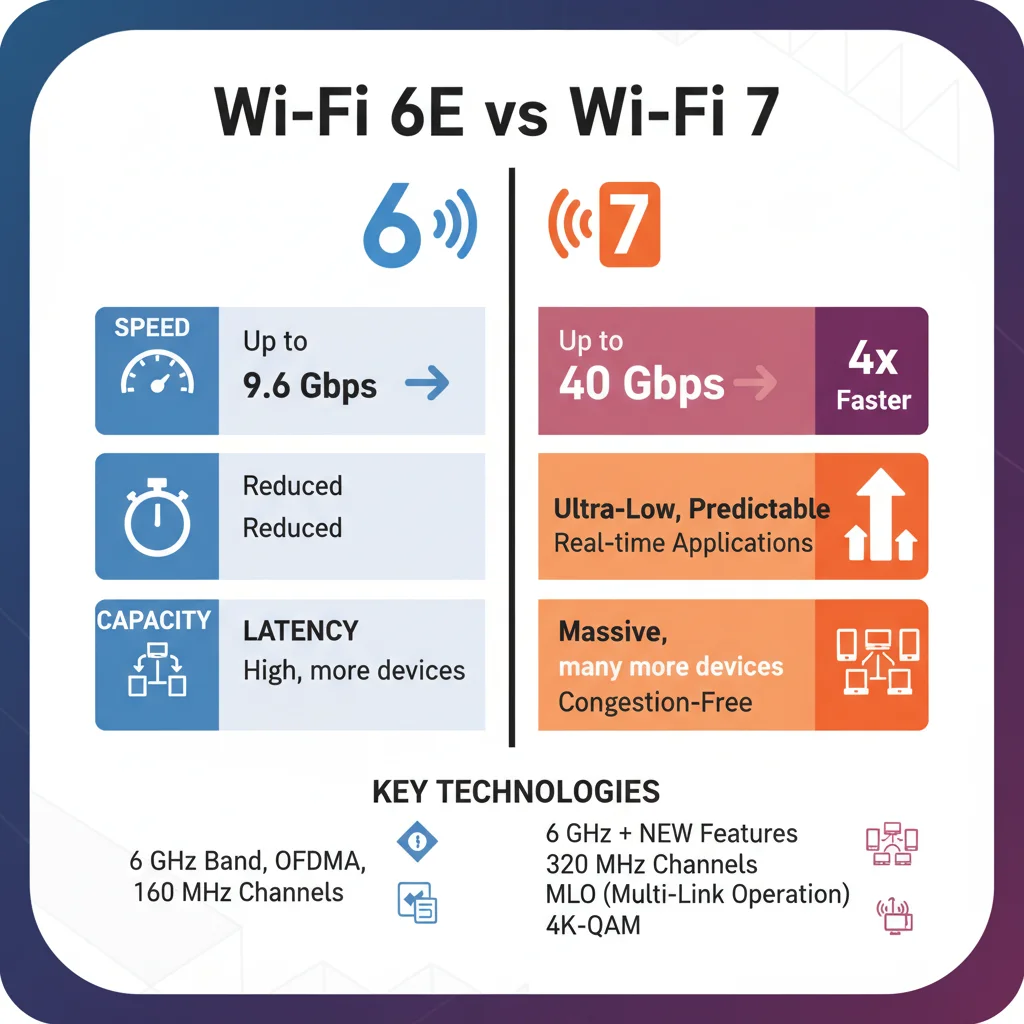
- 320 MHz Channels: Wi-Fi 7 doubles the maximum channel width from 160 MHz in Wi-Fi 6E to a massive 320 MHz. Wider channels translate directly to higher data rates, akin to adding more lanes to a highway. This is particularly beneficial in the 6 GHz band, where ample spectrum is available for these super-wide channels.
- 4096-QAM (4K-QAM): This advanced modulation scheme packs more data into each signal, increasing theoretical peak speeds by up to 20% compared to Wi-Fi 6E’s 1024-QAM. While requiring excellent signal quality, 4K-QAM allows for incredibly efficient data transmission over short distances.
- Preamble Puncturing: In congested environments, traditional Wi-Fi standards struggle when a portion of a wide channel is occupied by another signal. Preamble Puncturing allows Wi-Fi 7 routers to ‘puncture’ out the occupied sub-channels, still utilizing the remaining clear portions of the wider channel. This maximizes spectrum efficiency and improves performance in crowded areas.
- Enhanced OFDMA: While OFDMA (Orthogonal Frequency Division Multiple Access) was introduced in Wi-Fi 6, Wi-Fi 7 refines its implementation, allowing for more flexible resource unit (RU) allocation. This means the router can more efficiently assign portions of the channel to multiple devices, further improving efficiency and reducing latency, especially in environments with many connected devices.
These innovations collectively contribute to Wi-Fi 7’s promise of theoretical maximum speeds exceeding 40 Gbps, a significant jump from Wi-Fi 6E’s 9.6 Gbps. This makes the Wi-Fi 7 Upgrade Guide an essential read for anyone serious about cutting-edge connectivity.
Why Upgrade to Wi-Fi 7 in 2026?
The question isn’t just ‘what is Wi-Fi 7?’ but ‘why should I upgrade now?’ The answer lies in the accelerating pace of technological development and the increasing demands placed on our home networks. Here are compelling reasons to consider a Wi-Fi 7 Upgrade Guide for your home:
Future-Proofing Your Network:
By upgrading to Wi-Fi 7, you’re not just improving your current experience; you’re investing in the future. As more devices adopt Wi-Fi 7, your network will be ready to handle them without bottlenecks. This includes upcoming generations of smart TVs, gaming consoles, VR/AR headsets, and IoT devices that will demand even greater bandwidth and lower latency.
Unprecedented Speed and Performance:
Imagine downloading a 4K movie in seconds, experiencing lag-free VR gaming, or running multiple 8K video streams simultaneously without a hitch. Wi-Fi 7 makes this a reality. For power users, content creators, and avid gamers, the sheer speed increase will be transformative.
Lower Latency for Real-Time Applications:
Latency is critical for applications like online gaming, video conferencing, and remote work. Wi-Fi 7’s MLO and enhanced OFDMA significantly reduce latency, providing a smoother, more responsive experience for real-time interactions. This is a key benefit highlighted in any effective Wi-Fi 7 Upgrade Guide.
Increased Capacity for Device-Dense Homes:
The average home now has dozens of connected devices, from smartphones and laptops to smart bulbs and security cameras. Wi-Fi 7’s improved efficiency and spectrum utilization mean your network can handle more devices simultaneously without a drop in performance, preventing network congestion and ensuring every device gets the bandwidth it needs.
Enhanced Reliability and Stability:
MLO’s ability to use multiple bands simultaneously provides inherent redundancy. If one band experiences interference, the device can seamlessly switch or utilize another band, leading to a more stable and reliable connection, especially in busy environments.
The Wi-Fi 7 Upgrade Checklist: What You’ll Need
Embarking on a Wi-Fi 7 Upgrade Guide requires more than just buying a new router. It involves a holistic approach to your home network. Here’s a checklist of what you’ll need:
1. A Wi-Fi 7 Compatible Router or Mesh System:
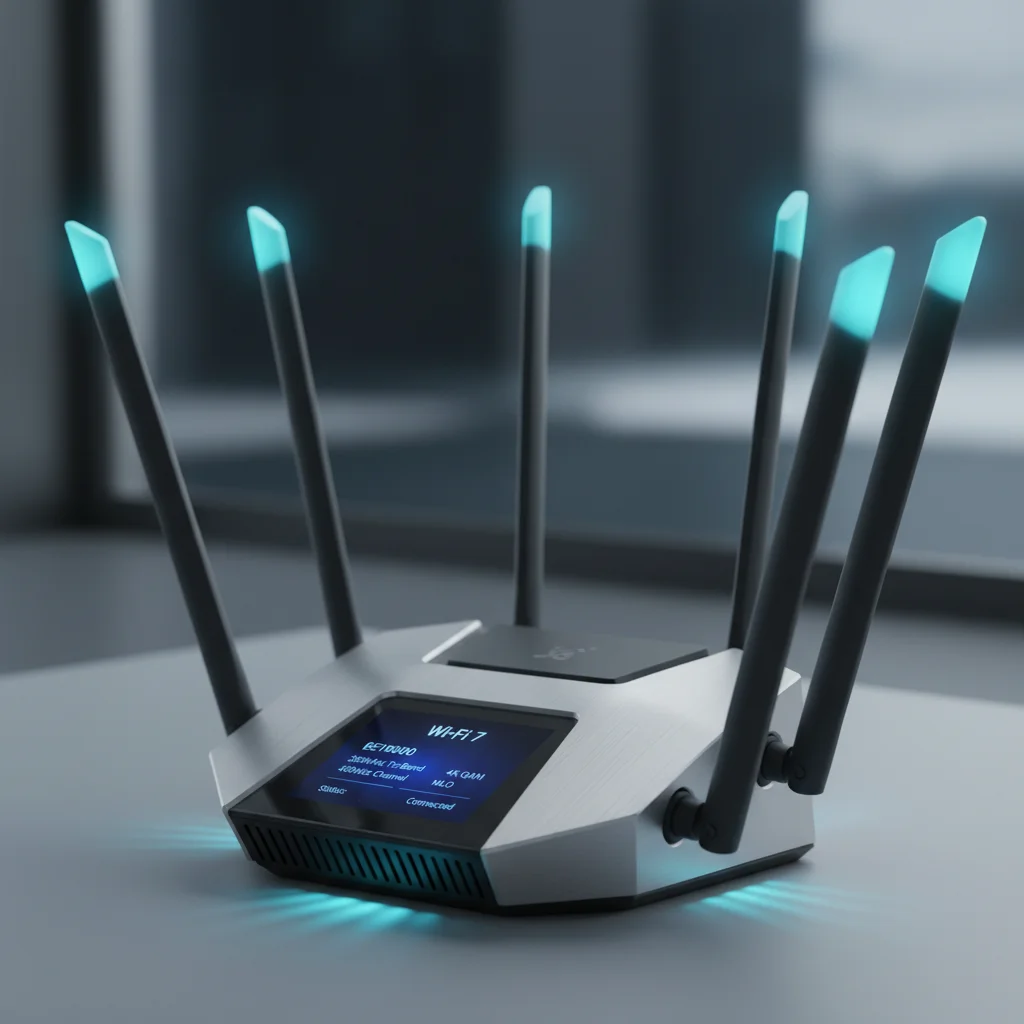
This is the cornerstone of your upgrade. Look for routers clearly labeled as ‘Wi-Fi 7’ or ‘802.11be’. Major networking brands like TP-Link, Netgear, Asus, and Linksys are already releasing or have announced Wi-Fi 7 hardware. Consider whether a single powerful router is sufficient or if a mesh Wi-Fi 7 system is better suited for larger homes to ensure consistent coverage.
2. Wi-Fi 7 Compatible Client Devices:
For your devices to fully leverage Wi-Fi 7’s capabilities, they also need to be Wi-Fi 7 compatible. In 2026, we expect a wider range of devices, including high-end smartphones, laptops, gaming PCs, and smart home hubs, to come equipped with Wi-Fi 7 (802.11be) chipsets. Check the specifications of your primary devices. If your devices are older, you might consider upgrading them or using Wi-Fi 7 USB adapters for desktop PCs.
3. High-Speed Internet Service Provider (ISP) Plan:
Even the fastest Wi-Fi 7 network won’t deliver its full potential if your internet connection is a bottleneck. Ensure your ISP plan offers speeds that can keep up with Wi-Fi 7’s capabilities – ideally, a multi-gigabit plan (2.5 Gbps, 5 Gbps, or even 10 Gbps) if available in your area. This is a critical, often overlooked, aspect of any Wi-Fi 7 Upgrade Guide.
4. Multi-Gigabit Ethernet Ports and Cabling:
To truly maximize the throughput of your Wi-Fi 7 router, ensure it has multi-gigabit WAN and LAN ports (e.g., 2.5 Gbps or 10 Gbps). If you plan to connect wired devices at these speeds, you’ll also need Cat6a or Cat7 Ethernet cables to support the higher bandwidth.
Step-by-Step Wi-Fi 7 Upgrade Installation Process
Upgrading your network might seem daunting, but by following these steps, you can ensure a smooth transition to Wi-Fi 7.
1. Plan Your Network Layout:
Before unboxing anything, consider where your new Wi-Fi 7 router or mesh nodes will be placed. Optimal placement is central, unobstructed, and away from interference sources like microwaves or cordless phones. For mesh systems, ensure nodes are strategically placed to provide seamless coverage throughout your home.
2. Backup Your Old Router Settings (Optional but Recommended):
If you have specific port forwarding rules, static IP addresses, or other custom configurations on your old router, make note of them. While not directly transferable, this information can be helpful for replicating your setup on the new Wi-Fi 7 router.
3. Unbox and Connect Your New Wi-Fi 7 Router:
- Power Off: Disconnect the power from your old modem and router.
- Connect WAN: Connect the Ethernet cable from your modem to the WAN/Internet port on your new Wi-Fi 7 router.
- Power On: Power on your modem first, wait for it to fully boot up (usually indicated by stable lights), then power on your new Wi-Fi 7 router.
4. Initial Setup and Configuration:
Most modern routers have user-friendly setup processes, often guided by a mobile app or web interface. This is a crucial part of the Wi-Fi 7 Upgrade Guide:
- Connect to Default Wi-Fi: Connect a computer or smartphone to the router’s default Wi-Fi network (SSID and password usually found on a sticker on the router).
- Access Admin Panel: Open a web browser and navigate to the router’s default IP address (e.g., 192.168.1.1 or 192.168.0.1) or use the guided app.
- Follow Setup Wizard: The wizard will typically guide you through setting up a new administrator password, customizing your Wi-Fi network name (SSID), and creating a strong Wi-Fi password.
- Enable 6 GHz Band: Ensure the 6 GHz band is enabled in the settings to take full advantage of Wi-Fi 7’s capabilities. Some routers might combine all bands under one SSID (band steering), which is often the recommended approach.
5. Connect Your Devices:
Once the router is configured, start connecting your Wi-Fi 7 compatible devices to the new network. For optimal performance, ensure they are connecting to the 6 GHz band whenever possible. Older devices will still connect to the 2.4 GHz or 5 GHz bands, ensuring backward compatibility.
6. Test Your Network:
Perform speed tests on various devices and in different locations around your home to ensure you’re getting the expected performance and coverage. Use online speed test tools or dedicated network analysis apps.
Optimizing Your Wi-Fi 7 Network for Peak Performance
Simply installing a Wi-Fi 7 router is a great start, but optimization is key to unlocking its full potential. This section of the Wi-Fi 7 Upgrade Guide focuses on fine-tuning your setup.
1. Router Placement is Paramount:
As mentioned, central placement is ideal. Avoid placing the router near thick walls, large metal objects, or other electronics that emit radio frequencies. Elevate the router if possible, as Wi-Fi signals tend to travel better downwards.
2. Leverage the 6 GHz Band:
The 6 GHz band is the superhighway of Wi-Fi 7. It offers significantly more bandwidth and less interference, but its range can be shorter and it’s more susceptible to obstacles. Prioritize connecting your most demanding, Wi-Fi 7 compatible devices (e.g., gaming PC, VR headset) to this band if they are close enough to the router.
3. Utilize Multi-Link Operation (MLO):
Ensure MLO is enabled on both your Wi-Fi 7 router and compatible client devices. This feature is often automatically managed by the router, but it’s worth checking the settings to confirm. MLO is a cornerstone of Wi-Fi 7’s efficiency and speed.
4. Keep Firmware Updated:
Router manufacturers constantly release firmware updates that improve performance, add features, and patch security vulnerabilities. Regularly check for and install the latest firmware for your Wi-Fi 7 router. This is a simple yet effective tip in any Wi-Fi 7 Upgrade Guide.
5. Consider Quality of Service (QoS) Settings:
If your router offers QoS, use it to prioritize traffic for critical applications. For example, you can give higher priority to video streaming, online gaming, or video conferencing to ensure a smooth experience even when other devices are active.
6. Secure Your Network:
Use WPA3 encryption for the strongest security. Create a strong, unique password for your Wi-Fi network and your router’s admin panel. Regularly review connected devices and remove any unrecognized ones.
7. Minimize Interference:
While Wi-Fi 7 is more resilient to interference, it’s still good practice to minimize it. Keep your router away from other wireless devices, cordless phones, and microwaves. If you live in a dense urban environment, your router might automatically select optimal channels, but manual channel selection can sometimes yield better results if you’re experiencing issues.
Troubleshooting Common Wi-Fi 7 Upgrade Issues
Even with the best planning, you might encounter minor hurdles. Here are some common issues and their solutions:
1. Device Not Connecting to 6 GHz:
- Check Compatibility: Ensure your device is indeed Wi-Fi 7 compatible and supports the 6 GHz band.
- Distance and Obstacles: The 6 GHz band has a shorter range. Move the device closer to the router or consider a mesh node.
- Router Settings: Verify that the 6 GHz band is enabled in your router’s settings. If using a single SSID for all bands, the router should automatically steer devices, but sometimes a manual preference can be set on the device itself.
2. Speeds Not as Expected:
- ISP Speed: Double-check your internet plan speed. Wi-Fi 7 can only be as fast as your incoming connection.
- Ethernet Backhaul: For mesh systems, ensure you’re using wired Ethernet backhaul between nodes if possible, for maximum performance.
- Client Device Limitations: Even if Wi-Fi 7 compatible, some client devices might have internal hardware limitations that prevent them from reaching theoretical maximum speeds.
- Interference: Use your router’s built-in tools (if available) or third-party Wi-Fi analyzer apps to check for interference from neighboring networks.
3. Intermittent Connectivity:
- Firmware: Ensure your router’s firmware is up to date.
- Router Reboot: A simple reboot of the modem and router can often resolve temporary issues.
- Channel Congestion: If possible, try changing the Wi-Fi channels in your router settings. The 6 GHz band is generally less congested, but it’s worth checking.
The Future Beyond Wi-Fi 7
While this Wi-Fi 7 Upgrade Guide focuses on the present and near future, it’s worth briefly touching upon what lies beyond. The IEEE is always working on the next generation of wireless standards. Wi-Fi 8 (802.11bn) is already on the horizon, promising even further advancements in speed, efficiency, and intelligence. These future standards will likely build upon the foundations of Wi-Fi 7, integrating even more sophisticated AI-driven network management, enhanced security protocols, and potentially exploring new spectrums.
However, for the foreseeable future, Wi-Fi 7 represents the pinnacle of home wireless connectivity. Its capabilities will comfortably support the demands of smart homes, immersive experiences, and high-bandwidth applications for years to come. Investing in a Wi-Fi 7 network now is a strategic move that ensures your digital life remains seamless, fast, and responsive as technology continues its relentless march forward.
Conclusion: Embrace the Wi-Fi 7 Revolution
The journey to a future-proof home network culminates with a successful Wi-Fi 7 upgrade. By understanding the technology, planning your setup, carefully installing your new hardware, and optimizing its performance, you can unlock an entirely new level of wireless connectivity. This Wi-Fi 7 Upgrade Guide has provided you with the knowledge and steps necessary to make this transition confidently.
In 2026, Wi-Fi 7 is not just an incremental improvement; it’s a foundational technology that will enable the next wave of digital innovation in our homes. From lightning-fast downloads and ultra-low latency gaming to seamless 8K streaming and robust smart home ecosystems, Wi-Fi 7 delivers the performance and reliability required for our increasingly connected world. Don’t let your home network be a bottleneck; embrace the Wi-Fi 7 revolution and experience the future of wireless today.